Branch out, then see it all.
Branch a conversation from any answer and see every branch on a canvas, and let cards in chat do their own math. Penzor Cloud brings sync and your drive into one Space, and Forsion Clip now both clips pages and lets Tangu work in your Chrome. The calendar, Home and whiteboards get a refresh, and a new Guide teaches Forsion on the real interface.
These English demos use the default Genesis theme and Classic colors, recorded in Desktop 2.13.5.
Branch a conversation, see it as a canvas
Any answer can start a new branch with Continue from here. Everything before the fork stays as it was, and Tangu knows which branch it is in and where the others went. Switch the chat to Canvas to see each turn as a question card and an answer card, stacked or side by side. Double-click a card to read it in a pane on the right, use the ⊕ under an answer to branch off right there on the canvas, and right-click for the rest: copy, show only one branch, collapse, rename or archive.
Penzor Cloud: sync and your drive in one place
A new Penzor Cloud Space gathers what you keep in the cloud: usage, synced vaults, app files, exports and trash. The Sync page turns on sync for your notes vault, Agents & memory and plugin data in one place. My drive holds files and whole folders, up to 50 MB each; uploads queue in the background and keep going when you switch Spaces.
Forsion Clip: clip pages, and let Tangu use your Chrome
Tangu for Chrome is now part of Forsion Clip, so one extension does both: clip web pages into your vault, and let Tangu browse and act in the Chrome you already use, in its own tab group. Install it from Settings → Browser control; once installed, it asks to connect and one click sets up both.
Cards that do their own math
Answers such as a mortgage calculator, bill splitting or unit conversion come back as cards you can change. Edit a number and the result updates on the spot, without asking the model again. Cards can show large figures and tables, and a follow-up question carries the values you changed.
Tangu splits the work with child sessions
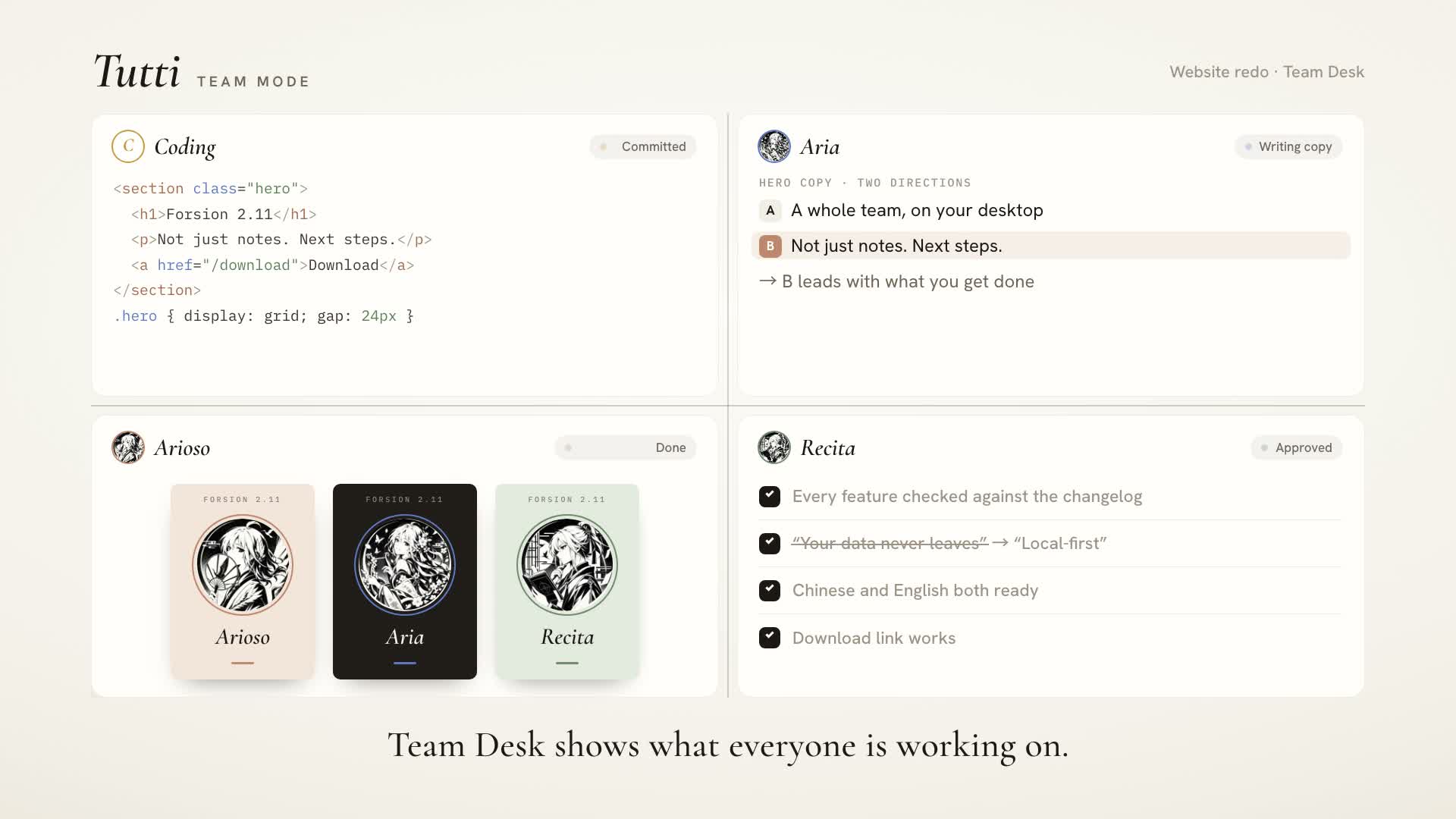
Tangu can open up to four visible child sessions to work on parts of a task at once. Each one hands its result back to the main chat, which carries on from there. The left panel shows every child session's status, and a chat that ends with a question is marked as waiting for you.
A calendar you plan in directly
The calendar has a new layout: a mini month and your calendars on the left, to-dos on the right. Click an empty slot and type to create an event, drag to set its length, drag a to-do straight into the time grid, and undo a move with ⌘Z. Right-click an event to copy, cut, clone or paste it; on phones, tapping an event opens its details in a drawer at the bottom.
New Home backgrounds
Home has four new theme backgrounds, Orbit, Sun path, Paper and Glyphs, and Forsion rings is back. Glyphs fills the screen with faint characters that ripple out from the cursor as you type or click.
View controls for whiteboards
Every whiteboard has a row of view buttons at the bottom: grid (with spacing, direction and strength), snap to objects, view mode, zen mode and full screen. Whiteboards open zoomed to fit everything on them.
Attachments as tiles, images up close
Attachments show as tiles: images as thumbnails, other files with their type and size. Click an image in a chat to view it large right there, switch between images, zoom, and press Esc to close. Sent messages now rise out of the input box.
Learn Forsion with the Guide
The new Guide Space is Forsion's manual, unlocked level by level. Each chapter shows where things are; Take me there switches to the right place and rings the spot to click on the real interface, and you can ask Tangu about the chapter right beside it.
All 2.13.5 updates
Branch a chat, or lay it out as a canvas:
Answers have a new Continue from here action that starts a branch from that message; everything before the fork stays the same as in the original chat. Branches sit under the main thread in the left panel, and Tangu knows how many branches the chat has and where each one got to. From the last answer in a branch, Bring back returns you to the original thread with that answer attached to the input as a quote.
By the way opens on the right of the chat and keeps what you asked there; Ask in sidebar on selected text is now part of By the way. Under each answer you see the branches, side questions and child sessions that started from it.
Switch to Canvas at the top of the chat column. Each turn becomes a question card and an answer card, stacked vertically by default or laid out side by side. Long answers show a preview on the card: double-click a card to open a reading pane on the right, and use ↑ ↓ to move to the previous or next turn of that branch. Hover the ⊕ under an answer to branch off from there and keep asking, or the ⊕ beside a question to ask it another way. Cards and empty space have right-click menus: branch, copy, By the way, show only this branch, collapse the cards below (they fold into "+N"), and rename or archive a branch. The canvas follows a new answer while it's written, and if you scroll away, an arrow takes you back.
Child sessions and task cards: Tangu can open several visible child sessions to split up the work (up to 4 at a time). Each one hands its result back to the main chat when it's done, and the main chat carries on. In the left panel, child sessions sit under their parent with a status at the end of the row: running, waiting for you, or done but not yet viewed. The answer that started them lists them underneath, and a row that's waiting for you offers Reply or Let Tangu answer. When an answer ends with a question, the chat is marked as waiting for you. Task cards have a new Start child session action.
Muse's chat and the inbox each have a job: anything Muse needs you to answer or decide, the to-dos it notes down and background actions that need your approval all come to your chat with Muse; finished work still goes to the inbox. The badge on the Tangu icon counts chats with new messages or waiting for you, and turns a stronger color when one is waiting. A chat that starts waiting for you also sends a system notification. In Settings → Notifications, letters now come as a Daily digest: one a day, or none.
Cards in chat do their own math: for answers such as a mortgage calculator, splitting a bill, unit conversion, vocabulary flashcards or step-by-step guides, change a number in the card and the result updates on the spot, without asking the model again. Cards can show large figures and tables, and a follow-up question carries the values you changed in the card. Web cards in chat are now called Intelligent UI everywhere. Phones still show the previous cards for now.
Chat:
Thinking and tool calls are combined into one Process line above the answer. Collapsed, it's a one-line summary (such as "Thought for 8s · Ran 2 commands · Read 1 item"); expanded, it lists every step.
Attachments show as tiles: images as square thumbnails, other files as a strip with their type and size. Sent attachments sit above the message, and a message with only attachments no longer draws an empty bubble. Very long prompts fold automatically; click Show all to read the rest (copying, editing and what the model receives still use the full text).
Click an image in a chat to view it large right there: switch left and right, zoom with the scroll wheel or a pinch, double-click for actual size, copy or download it, and press Esc to close.
Sent messages rise out of the input box; with Reduce motion turned on in your system, they just fade in.
No need to drag an image in again to edit it: when this turn has no image, image editing uses the one from the previous message, and it can keep working on the image it just generated. Images dragged into a chat become image attachments (local chats still get the file path too). Editing and generating images in chats that already contain images uses less quota.
Thinking levels now work with DeepSeek V4.1 Flash, Gemini 4 and StepFun. When a model doesn't support the level you picked, it uses the nearest one (lower first, then higher), and the level actually used is shown next to Thinking effort.
Penzor Cloud:
A new Penzor Cloud Space on the Ribbon opens on a usage overview. The left panel lists what you keep in the cloud under Vault sync, Amadeus Cloud, App files, Exports and Trash. You can download, rename, move, move to trash, browse earlier versions and restore (synced vaults are view and download only), and synced files show which device wrote them.
My drive: upload files and whole folders, create folders, or drag files straight in from Finder. Files can be up to 50 MB each and count toward the 10 GB for app files. Uploads and downloads queue in the background and keep going when you switch Spaces; a floating card at the bottom right shows progress and lets you pause, cancel and retry. The Ribbon icon shows a progress ring, and quitting while something is still transferring asks first.
The Sync page gathers the switches, status and syncing devices for your notes vault, Agents & memory and plugin data. Once you sign in and finish onboarding, a "Sync this computer to Penzor Cloud" card appears with all three checked; click Start syncing to turn them on. If you're already signed in, you'll see the card once after updating.
When you sign in on another computer and the cloud already has a vault with files that differ from this one, vault sync waits for you on the Sync page: Merge both, Use the cloud copy (this computer's differing files move to a backup folder next to the vault first, nothing is deleted), or Don't sync notes on this computer yet. If you run out of space, smaller files go first, files that don't fit stay on this computer, and you're told once.
Guide: a new Guide Space is Forsion's manual. Chapters unlock level by level, the tasks are things you do anyway, and whatever you've done already counts. Each chapter has a diagram under its intro that shows where to look. Take me there switches to the right place and rings the spot to click on the actual screen; you click it yourself, and the ring moves on to the next step. Ask Tangu in the right panel is Tangu's own chat, with the current chapter attached above the input as a quote. Each new level brings an inbox letter with things to try next.
Me: the Agents list has a new Me row at the top. It opens the profile all your agents share about you, in three sections: Collaboration, Portrait and Memory. Collaboration shows what you ask of every agent on top and what you and your agents have agreed on below. You can edit each one directly, with a change history and undo. Collaboration update cards in a chat take you there with View handbook or Revise, and an agent's Collaboration tab links to it as well. With Agents & memory sync on, this profile syncs across your computers, and if two computers change it, the edits are merged line by line first. Schedules your agents set up sync too, and each automatic task still runs only on the computer that scheduled it.
Home:
New theme backgrounds: Orbit, Sun path, Paper and Glyphs, and Forsion rings is back. Orbit and Sun path drift slowly; turn the motion off in the wallpaper panel or in Settings → Appearance → Home wallpaper motion. Glyphs fills the screen with faint characters that ripple out from the cursor as you type, and also when you click an empty spot or send a message.
Recent-activity cards now sit below the input box (desktop): 4 by default, 1 to 6 from the right-click menu. The calendar card shows your next event and the inbox card your unread count, and the greeting and date share one line.
The achievements panel is split into Cloud achievements and On this device; cloud achievements add up across your account and come with rewards to claim. When an achievement is ready to claim, the trophy on the Ribbon shows a dot (on "⋯" when the trophy is tucked in there).
The Hack2Gate poster is gone, and Images only uses the picture you upload.
After you open another view from Home, switching away and back, or clicking the Home icon again, returns to Home itself; other tabs stay open in the background.
Colors: theme colors are now layered by role. Buttons and actions use the theme color, cues such as selection, focus and progress use the highlight color, and hover is always a neutral gray. Settings → Appearance → Colors has a new Highlight row: follow the theme color, pick one of six built-in colors, or choose your own. The Coral, Lavender and Clear blue backgrounds were redone as Clay, Dusk and Mist (if you had one selected, you get its new version), and Sage is new. In light mode, primary buttons in Classic and Ink are one step lighter.
Interface:
Switching Spaces has a transition: click the Ribbon and the workspace slides up or down in the Ribbon's direction while the Ribbon itself stays put. With Reduce motion on, it just fades. Not on phones yet.
One switcher for view modes: Chat / Canvas, Note / Canvas, the calendar's Day / Week / 3 days / Month and similar switches all sit at the far left of the view's top row. ⌥⌘V (Ctrl+Alt+V on Windows) moves to the next mode, and "View mode" is searchable in the command palette. In a narrow view only the icons remain, and narrower still it turns into a dropdown. Code Studio, workspace files and the file preview window use it too.
The Agent Desk and Mini cards have floating capsules instead of top bars. With the Agent Desk on the right expanded, two capsules sit on top: the item name on the left, which also switches items, and the view buttons, "⋯" and Clear / Collapse on the right; content scrolls underneath. A Mini card's top bar now matches the phone: the Space and a title dropdown (to switch chats or notes) on the left, New, Show in main window and Close on the right.
The right panel follows the main view: whichever kind of view is in front in the main area, the right panel switches to the set that goes with it: details, files and outline for a chat; chat, outline, backlinks and graph for a note; chat for PDFs, images, whiteboards and the like; to-dos for the calendar. Opening another file of the same kind leaves the right panel alone. Views you put in the right panel yourself and ones the Space pins are never closed, and ones you close don't come back after a restart.
Calendar and to-dos:
The calendar has a new layout: a mini month and your list of calendars on the left (click a color square to show or hide that calendar), to-dos on the right. Events are light blocks with a colored line on the left, and past ones fade. Calendar Spaces whose layout you never changed switch to the new one; customized layouts stay as they are.
Click an empty slot and type a title right there to create a one-hour event; press and drag to set its length, or drag across the all-day row for an event spanning several days. Dragged events snap to 15 minutes, ⌥-drag makes a copy, and moving or deleting an event can be undone with ⌘Z. Shortcuts: C for new, T for today, D / W / 3 / M to switch views.
Clicking an event opens an edit card beside it. Quick add for to-dos moved to the top and understands phrases like "tomorrow 3pm" or "next Monday", and you can drag a to-do straight into the time grid.
Events have a right-click menu (or press Shift+F10, or use Event actions on the edit card): copy, cut, clone (⌘D), paste, delete and copy summary, with undo and redo for the last 20 steps. Cloning an event that is a note copies the note's text too. Drag the top or bottom edge of a selected event to change its start or end time.
On phones, tapping an event opens a drawer at the bottom with its details, precise time editing and delete. Tapping near the edge of a short event used to count as a drag and open nothing; it opens the drawer now. Drag handles appear only once an event is selected, and the start and end times update live while you drag.
Opened as its own tab, the to-do view is the full version: filter by Today / Scheduled / All and by list at the top, choose which list a new to-do goes into and press N to add one, drag a to-do onto a group such as Tomorrow to change its date (undoable), move with ↑ / ↓ and check it off with Space. In the calendar's right panel and in Mini cards it's the compact version.
Whiteboards:
A row of view buttons at the bottom: Grid (⌘'), Snap to objects (⌥S), View mode (⌥R), Zen mode (⌥Z) and Full screen, plus a pen mode button in front when you use a stylus. Turning on the grid also opens its settings: spacing, major line interval, direction (squares, horizontal lines only or vertical lines only) and strength. Whiteboards zoom to fit everything when they open. View mode's shortcut and right-click menu used to do nothing; they work now. On phones these are in the menu.
Drawing with a stylus keeps up better: fast strokes no longer drop points, and pressure lines up point by point. If your palm touches the screen mid-stroke, the stroke is no longer cut short or deleted, and you can start drawing with your palm already resting on the screen.
Notes:
The @ mention panel has categories: All, Agents, Dates and Notes; switch with ← / →.
forsion:// links in a page open inside the app (in the editor, hold ⌘ / Ctrl while you click).
Typing or deleting no longer makes fold arrows twitch or the content below jump.
If you keep typing while a note or folder is being moved, your text no longer lands in a conflict copy in the old folder, and an old copy of the note no longer reappears where it used to be.
On the Cloud side, synced vault sections show which devices sync them ("This device" for this one) and come before the Cloud vault section. Right-click a top-level folder to show it as a synced vault, or remove a section left behind by older versions.
Settings:
Settings → Models is reorganized into three parts. Default models are grouped into chat, image, voice and translation, each showing where its value comes from, with one click to go back to following it; read-aloud, voice call and voice input models moved here too. Model library lists every model in six types, and cloud models can be hidden on this computer. Under Providers, you can set each model's type and Text only flag, or type in a model name.
Web search is now an ordered list: connected search sources are tried in the order you set. Drag to reorder and test each one; a key is saved only once its test passes. DeepSeek is a new search source (bring your own key).
New Settings → Devices, which opens from the device pill on the Ribbon: switch between this computer, the cloud and other devices, and turn on Allow other devices to connect, all in one place. Paired devices are now called Visiting devices and are folded away by default. Computer Use moved into the AI group next to Browser control, and searching "strict background" finds it.
In Settings → Shortcuts, recording a key that another command already uses shows a note under the row, and nothing changes until you click Reassign here; the other command no longer loses its key silently. System-reserved keys such as ⌘Q or copy and paste are blocked, and keys the note editor would take first (⌘B for bold, for example) can be saved with a warning. The Keys toggle in the search box lists the commands that use whatever key you press. Clashes that already exist show as "N conflicts" in the toolbar and can be filtered. Global shortcuts, such as the one for the Mini window, pause while you record so they can't grab the keys.
Settings → Forsion Cloud is regrouped: the sidebar now has Account, Membership & usage, Backpack, Submissions, and Help & diagnostics, with tabs under Account, Membership & usage, and Help & diagnostics. Every page can be found in Settings search.
Git: the project's Git tab has a new Remotes card that lists every remote, which account it uses and where pushes go now. Each row offers Push here from now on and Push here once, and the Push button names where it pushes. The three publish buttons are now one Add remote… dialog, which also works when the project already has a remote: new remotes are named after their site, and the existing origin is left alone. Remotes that aren't called origin are recognized too. When the account Forsion brings is turned away (no permission, or repository not found), the push or pull is tried once more with this computer's own Git credentials. In Settings, Accounts shows which account each site uses, Commit identity has its own panel that marks which level is in use, and the old Git panel is now called Commits and pushes.
Store and plugins:
A plugin's page in the Store has Overview, Comments and Versions. You can comment and reply, and authors get comments in their inbox. Forsion version and platform are checked before installing. In a chat, you can ask Tangu to search the Store; results come as plugin cards that install with one click.
The Submissions page adds a detailed description, tags, Forsion requirements and supported platforms, and plugin names may repeat.
A plugin's details page lists the capabilities it asks for (such as "read and write your databases, read and write @ tasks in notes, read the foreground window"). In Settings → Hooks, hooks that come with a plugin are marked "From plugin · observe only".
Open files from your system: PDF and Markdown files can be opened with Forsion (Open With in Finder, dropping onto the Dock icon, or double-clicking on Windows). Files outside your notes vault open in a temporary tab for preview; Markdown can be edited there and is saved back to the original file without being imported into the vault. Files inside the vault open as notes as usual.
The Chrome extension is now Forsion Clip:
Tangu for Chrome has been merged into the Forsion Clip web clipper, so one extension does both: clip pages into your vault, and let Tangu keep working in the Chrome you use, in its own "Tangu" tab group in the background. The extension ID and folder are unchanged: after updating, click Reload on Chrome's extensions page (or restart Chrome) and your existing pairing is kept.
Installing: in Settings → Browser control, click Open extensions in Chrome and turn on Developer mode, then drag the Forsion Clip card from Settings onto the extensions page. You can also copy the path or open the extension folder and load it by hand.
Pairing: once installed, Clip asks to connect and Forsion shows a prompt. Click Allow and turn on to set up clipping and browser control in one go (this also turns on Allow other devices to connect); if you'd rather not, you can still paste the connection code by hand. The Settings card shows whether Clip is installed and connected, and which version. When a Forsion update brings a newer Clip, a connected Clip switches to it on its own (keep Developer mode on in Chrome).
Faster: long chats open much faster and no longer stutter while an answer streams in. Opening or closing the sidebar on a long note takes a fraction of a second instead of over a second, and typing is smoother. Code blocks are highlighted only when they scroll into view.
Terms updates: when the Terms of Service or Privacy Policy change, a card after you sign in explains what changed. Usually you just click Got it; when you need to agree again, you choose Accept or Decline and sign out. Once you've confirmed on one device, the others don't ask again. Windows that pop up on their own (terms, cloud sync, What's new, plugin announcements) now appear one at a time, and wait while onboarding is open.
Updates:
When a new version is available, a two-column What's new window opens: versions on the left (earlier versions included) and that version's post from the website's release notes on the right. If the website can't be reached, the changelog is shown instead. Open it anytime from Settings → About. While the app is open, Forsion also checks for updates every 6 hours and after the computer wakes from sleep.
A new version is offered only once it is on the website's download page. In mainland China the installer downloads from the website by default, elsewhere from GitHub, and it switches to the other one if a download stalls; you can also switch while downloading, or pin one in Settings → About → Download from. On macOS, Download installer starts this version's .dmg download in your browser instead of opening the Releases page.
Android:
Quitting while you're in Tangu no longer loses your open tabs on the next launch, and when Start in is set to another Space, that Space no longer opens with the previous Space's tabs and panels.
On tablets and on phones in landscape, Spaces move to a full-height bar on the left: Home comes first, pinned Spaces take priority when they don't all fit and the last slot is All, and your avatar sits at the bottom; in portrait the bottom Dock stays. The title capsule moves into the main area, and Home is centered on tablets. Whiteboards fill the whole screen height with their menu and toolbar in the capsule row, and with a finger the pan hint now says to drag or pinch with two fingers.
In the image viewer, pinch to zoom, swipe left or right to switch images and drag down to close; system back closes it too. Downloaded images are saved to Downloads.
The "⋯" in the top bar shows a dot when there's an achievement to claim, and the dot on Tangu also counts new messages and waiting chats with Muse.
The view mode switcher sits between the two top-bar capsules (with the native top bar, it's under View mode in "⋯"), and the notes bottom bar no longer has a canvas button.
Standalone whiteboards and databases in subfolders no longer show "File missing" when opened.
Installing a plugin from the Store that doesn't support phones, or needs a newer app version, now tells you why instead of showing an English error code.
Windows:
Quickly dragging a Mini card's edge or corner to resize it no longer sometimes does nothing.
Mini cards now animate when they fold against the screen edge and when they expand, no longer show square corners after a theme change, and stay on their own monitor when folded against an edge shared with another monitor.
Note paths are now written one way, so the same note is no longer treated as two: tab following, unsaved drafts, pins and calendar settings all line up, and records from older versions convert automatically.
Approvals: in Ask mode, only read-only cmd forms such as
dirandtypeskip approval, and every other command needs approval (git statustoo). Muse now reads its own logs and files with a file-reading tool that needs no approval, instead of queuing a string of approval cards.
Web (takes effect once the web version is updated):
Opened in a phone or tablet browser, the web version now looks and works like the Android app: a bottom Dock in portrait and a bar on the left on tablets in landscape. An iPad opened or refreshed in landscape gets this layout too, instead of the desktop one.
Your Forsion account page, the Store (membership, points, items and plugin submissions), announcements and Penzor Cloud are now on the web, and Penzor Cloud can browse, upload and download files.
Plugins (for authors): the forsion-plugin skill is now 1.59.0.
Views and UI: a plugin view can close itself from its own content with
view.close()(the same API for desktop floating panels and Web overlays);ctx.ui.mountSettingsPage/mountSettingsItemdraw settings pages like the host's from data, laid out by control on phones;ctx.ui.setViewModesputs a view mode switcher in a plugin view's top row;ctx.registerToolResultRenderergives your engine half's tools native result cards that can move between the chat and the Agent Desk;ctx.ui.contextMenuaddsopts.keepOpenand a handle withupdate(items), so checklists can be ticked several times in a row, and long menus scroll (up to 200 items);ctx.ui.mountModelPickerand per-call model choice are new too; a setting withsecret: trueshows as a password field (masked, not encrypted).Layout and Ribbon:
rightCompanionsonregisterViewdeclares the right panel set a view wants when it's in front;ctx.app.setSpaceDot/setSpaceProgressput a dot or a progress ring on your Space in the Ribbon;ctx.spaces.mountIconfollows the Space, so re-registering the same id with a new icon redraws it in place;ctx.closeView(id, { collapse: true })collapses a whole side;ctx.app.queuePopupputs your own pop-ups in the host's queue; an item in a Space recipe'slayout.maincan set"mainPage": trueto be the page you land on in that Space.Data and events:
ctx.databases/ctx.noteTasksread and write databases and @ tasks in notes; thecalendartier ofctx.calendar(overlay calendar sources, calendar settings, .ics management),ctx.ui.mountRecord,openNotejumping to a heading, and notifications with action buttons;ctx.app.onVaultEventreports creates, deletes, renames and outside changes in the vault; a command receipt can carry aresultfor the model;"syncData": truein the manifest syncs plugin data with the account across desktop and phone; plusctx.spaces,ctx.tangu.mountComposer,ctx.app.openSpace/openLink/watchAccountName,ctx.wallpaper.bingandctx.achievements.Engine plugins: the manifest can declare a bundled stdio MCP server (
mcpServers) and observe-onlyhooksthat never block, started and stopped with the plugin; the tool context exposespresentDesk/runId; a plugin's details page lists the capabilities its manifest declares.
Fixes:
DeepSeek V4.1 Flash couldn't see images you sent (they were turned into a text description first).
In long chats and long notes, jumping from the outline or a search result got pulled back to the bottom or landed in the wrong place.
Editing an image without an attachment made the agent retry the same error over and over; it now says that a path isn't an attachment and asks you to attach the image again.
The pointer over an inbox letter's body was always a grab hand, and inbox list subtitles showed backslashes, as in
run\_bash.On macOS, shortcuts with ⌥ failed because ⌥ changed the character typed; they now go by key position, and modifier keys in shortcut hints follow the system menu order (⌥⇧⌘).
View on trace notes, evolution update cards and notifications only opened the top of Tangu's details; it now scrolls to the matching entry and highlights it briefly.
With the calendar open in a tab, switching to another tab and back made the week view jump to August and the month view to a different month.
In the English interface, calendar event cards and the new-event card showed dates in Chinese.
English chats were sometimes given Chinese titles and summaries.
In notes, pressing ← or Backspace at the start of a line inside a fold block split the text out of the block, so collapsing it only hid the paragraphs before.